iMessage stickers from photos
Make an iMessage sticker from your photo
On iPhone, stickers can be peeled right onto a message bubble. Upload a photo, get a clean transparent cutout, and use it as a personal iMessage sticker on top of your chats.
Create one free stickerJPG, PNG, WebP, GIF · up to 10 MB · 1 free sticker after a quick Google sign-in
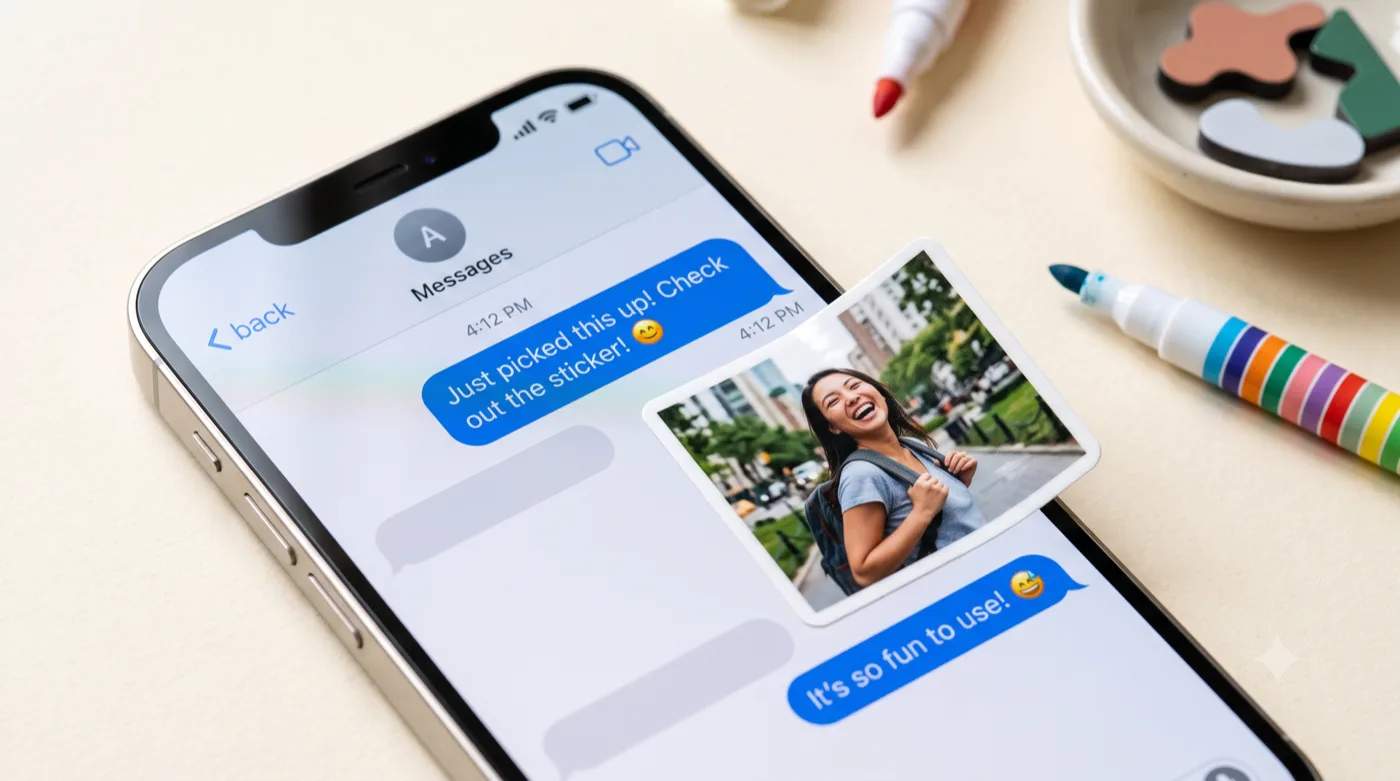
AI-generated example — your own photo produces your own result.
How it works
Three steps to your sticker
Upload a photo on your iPhone
Choose a single, bold subject that stays readable when the sticker is placed small on a chat.
Make a transparent cutout
Export a high-resolution PNG with no background box so it peels cleanly onto a bubble.
Peel it onto a message
Save it to Photos and add it through a sticker app to place it right on your iMessage conversations.
Get the best result
Tips that actually help
For iPhone users who want personal stickers in Messages made from their own photos.
Transparent is essential
iMessage stickers look best peeled onto a bubble, so a clean cutout with no background box is exactly right.
Simple, bold subject
A single clear subject reads well when stickers are placed small on top of a conversation.
High resolution
Export a high-resolution PNG so the sticker stays sharp when scaled on a Retina screen.
Test on a real chat
Place it on a message to check the crop and outline before you commit to a whole set.
Export & format
Export a transparent-background PNG here. iOS lets you use image stickers in Messages (and iOS can also lift a subject from a photo directly) — a clean PNG cutout gives you full control over the crop and outline.
Platform format details are based on official documentation (reviewed July 2026): Apple: Send stickers in Messages. Platform rules can change — check the source for the latest.
Good to know
Questions about this use case
How do I use the sticker in iMessage?
Save the transparent PNG to your iPhone, then add it through a sticker app or place the image on a message. iOS also supports lifting subjects from photos, but a dedicated cutout gives a cleaner, more consistent edge.
Does it work on iPad too?
Yes. The exported PNG works anywhere you can add an image sticker across iMessage on iPhone and iPad.
Is a signup required to try?
A quick Google sign-in is required. Your new account includes one free sticker (watermarked) so you can try it before subscribing. See the homepage for plan details.
Ready to try it with your photo?
Sign in with Google and create your first sticker free — one clear photo is all you need to get started.
Related guides