Cricut photo stickers
Make Cricut stickers from your photos
Cricut’s Print Then Cut turns a printed image into a precisely cut sticker — but it only looks clean if the image has a proper transparent cutout first. Upload a photo, export a transparent PNG, and bring it into Design Space for a crisp die-cut.
Create one free stickerJPG, PNG, WebP, GIF · up to 10 MB · 1 free sticker after a quick Google sign-in
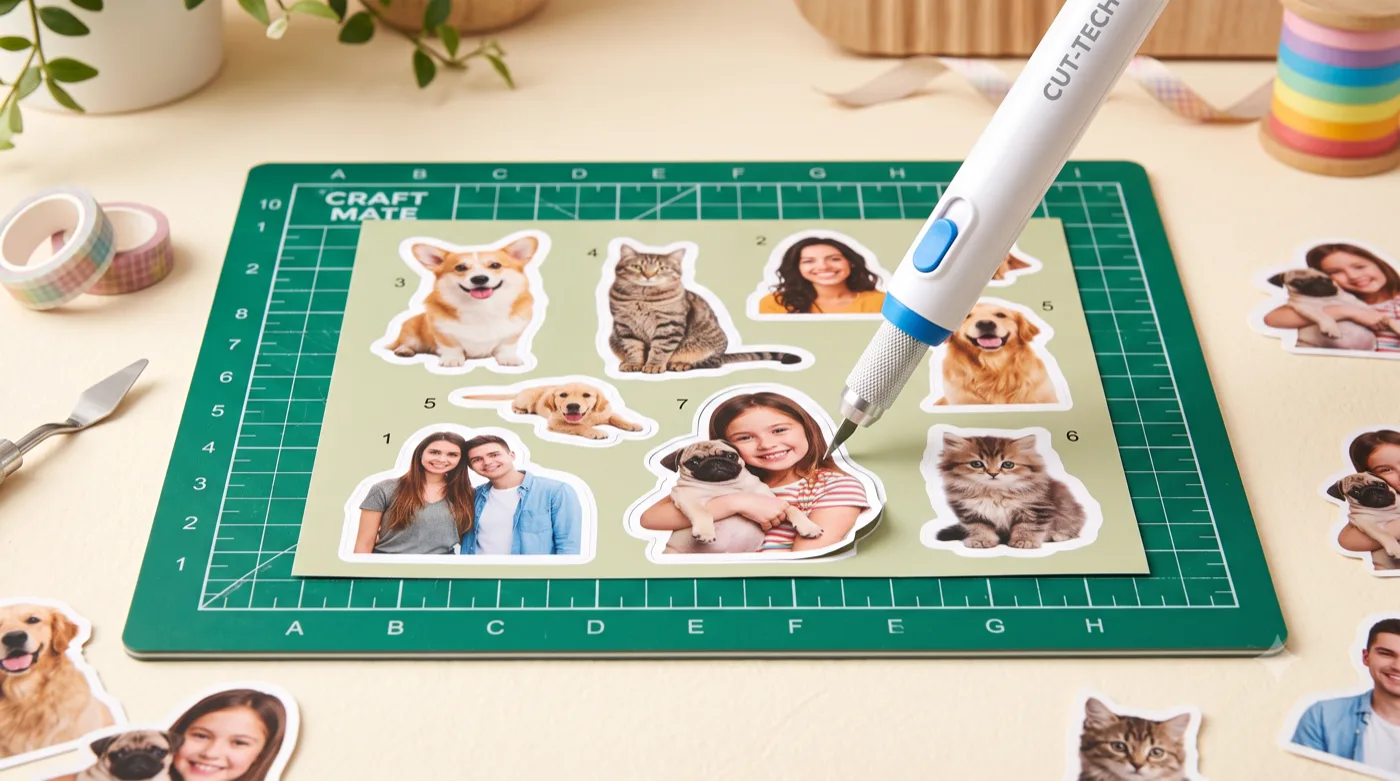
AI-generated example — your own photo produces your own result.
How it works
Three steps to your sticker
Upload a photo
Add the photo you want to turn into a die-cut Cricut sticker, with a clear single subject.
Export a transparent PNG
The clean cutout gives Design Space a real shape to trace instead of a rectangle.
Print Then Cut
Import to Design Space, add a small offset for the white border, then run Print Then Cut.
Get the best result
Tips that actually help
For Cricut owners who want die-cut stickers made from their own photos.
Cut out first, then import
A clean transparent PNG gives Design Space a clear shape to trace, so the cut line hugs your subject instead of a square.
Add an offset
In Design Space, add a small offset around the image for that classic white sticker border before you cut.
Calibrate Print Then Cut
Run Cricut’s Print Then Cut calibration so the blade follows the printed outline accurately.
Use compatible sticker paper
Printable sticker paper or vinyl that your printer and Cricut both support gives the most reliable results.
Export & format
Export a high-resolution transparent PNG here, import it into Cricut Design Space, add an offset for the border if you want one, then use Print Then Cut. The transparent edge is what lets Cricut cut the shape rather than a rectangle.
Platform format details are based on official documentation (reviewed July 2026): Cricut: How to Print Then Cut in Design Space. Platform rules can change — check the source for the latest.
Good to know
Questions about this use case
Why does the cutout matter for Cricut?
Print Then Cut traces the image outline. If the image still has a background, Cricut cuts a rectangle. A transparent cutout lets it follow the subject’s shape for a true die-cut look.
What size can I print and cut?
Print Then Cut has a maximum printable area per Cricut’s specs. Keep individual stickers within that area and print at high resolution for sharp edges.
Do I need special paper?
Use printable sticker paper (or printable vinyl) compatible with your printer, and a laminate on top if you want water resistance.
Ready to try it with your photo?
Sign in with Google and create your first sticker free — one clear photo is all you need to get started.